Web App guide
How to use the findCar Web App
Log in at track.findcargps.com with the same email and password as the app. From your computer you see your vehicles on the map, get reports in Excel and manage your fleet: create unlimited users and choose which vehicles each one sees.
Before you start
- A computer with an up-to-date browser (Chrome, Edge, Firefox or Safari).
- Your findCar email and password: the same as in the app.
- At least one tracker added to your account: OBD 4G or Tracker 4G.
- Open the Web App at track.findcargps.com.
1The map
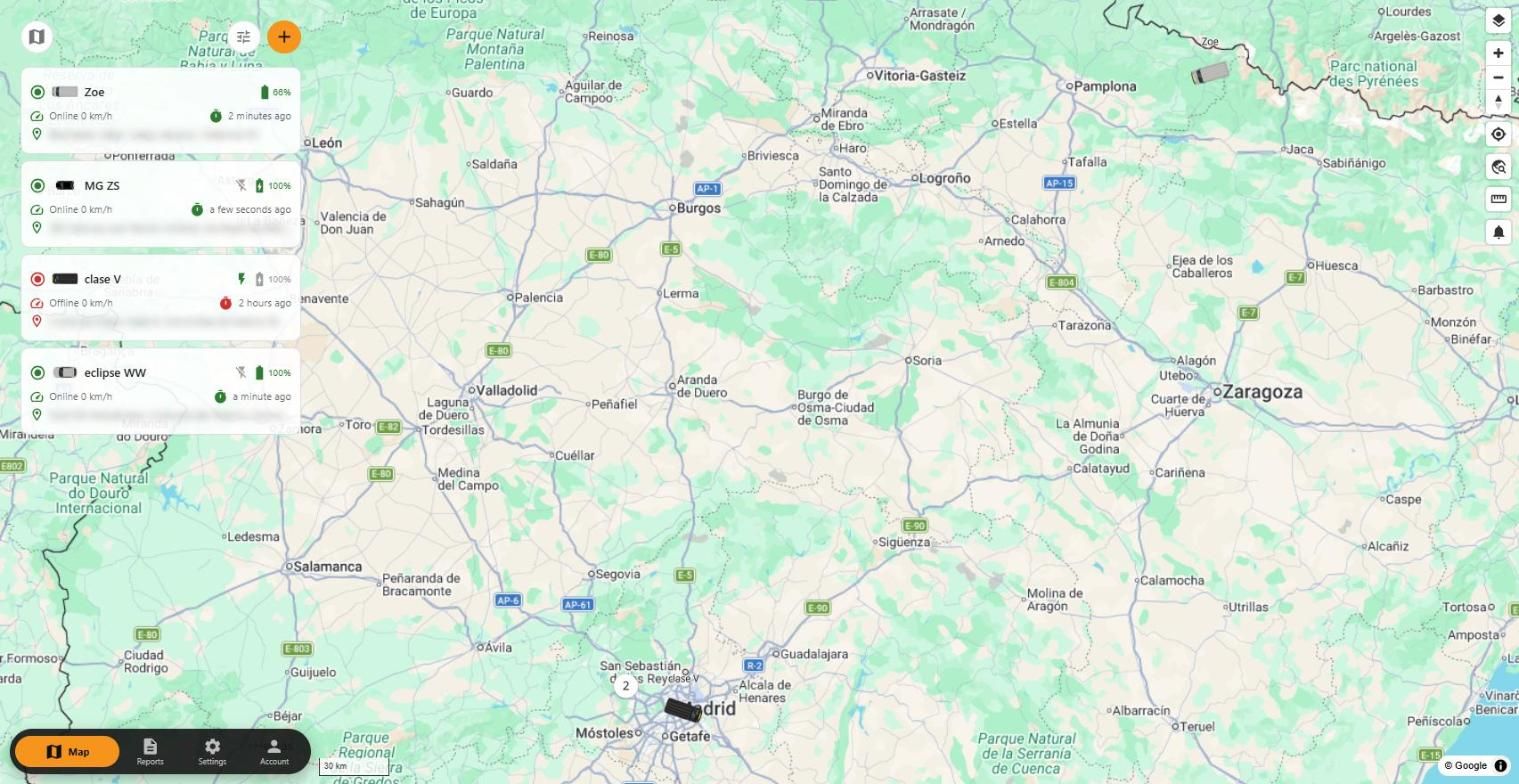
- On the left, your vehicles with their status (online and speed), battery, last signal and address.
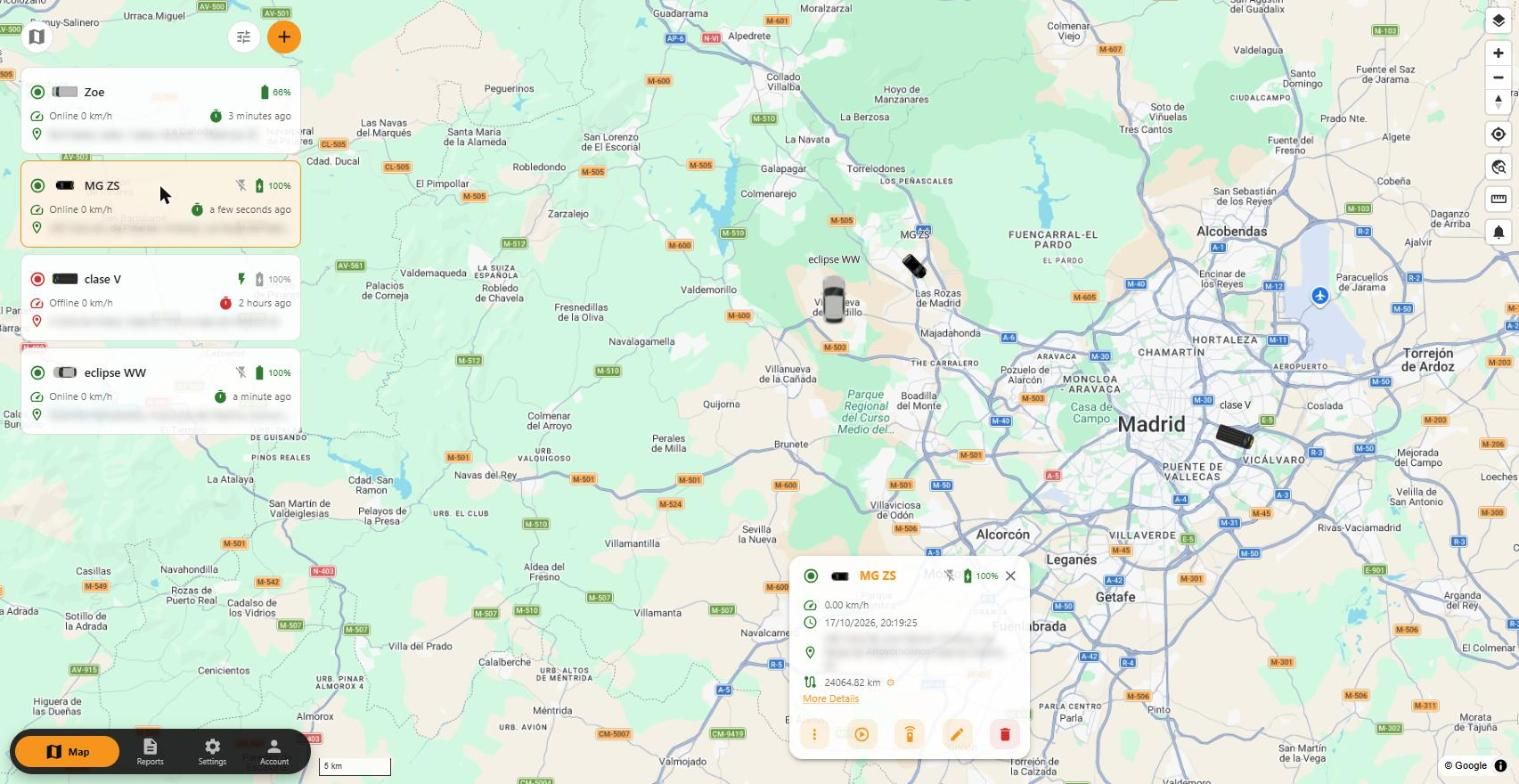
- Click a vehicle to centre it and open its card: speed, date and time, address and kilometres.
- Card buttons: ⋮ more options, ▶ replay the route, commands, edit and delete.
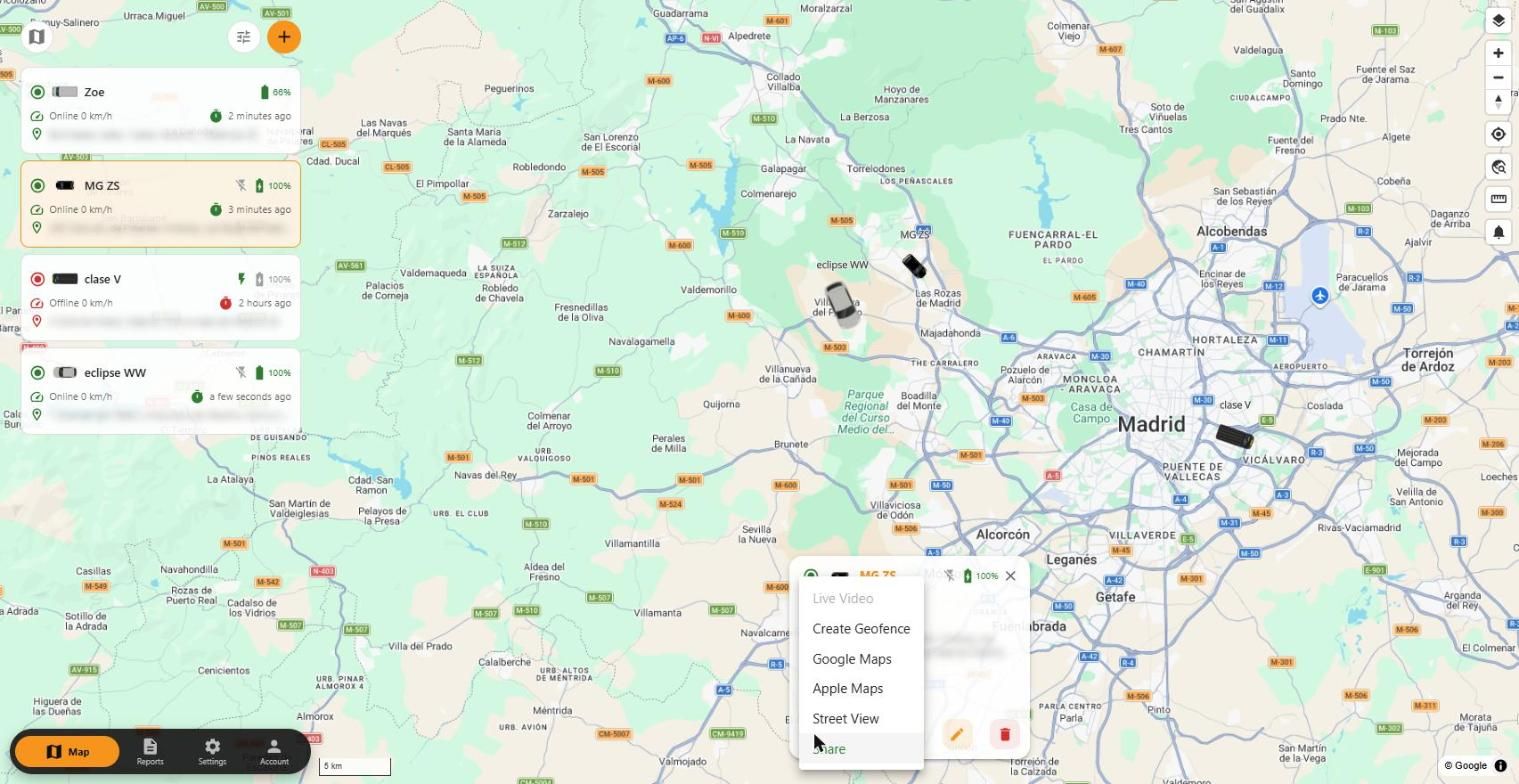
- Under ⋮: Create Geofence at that point, open the position in Google Maps, Apple Maps or Street View, and Share.
- On the right: map layers, zoom, your location, search, measure distances and alerts.
2Reports
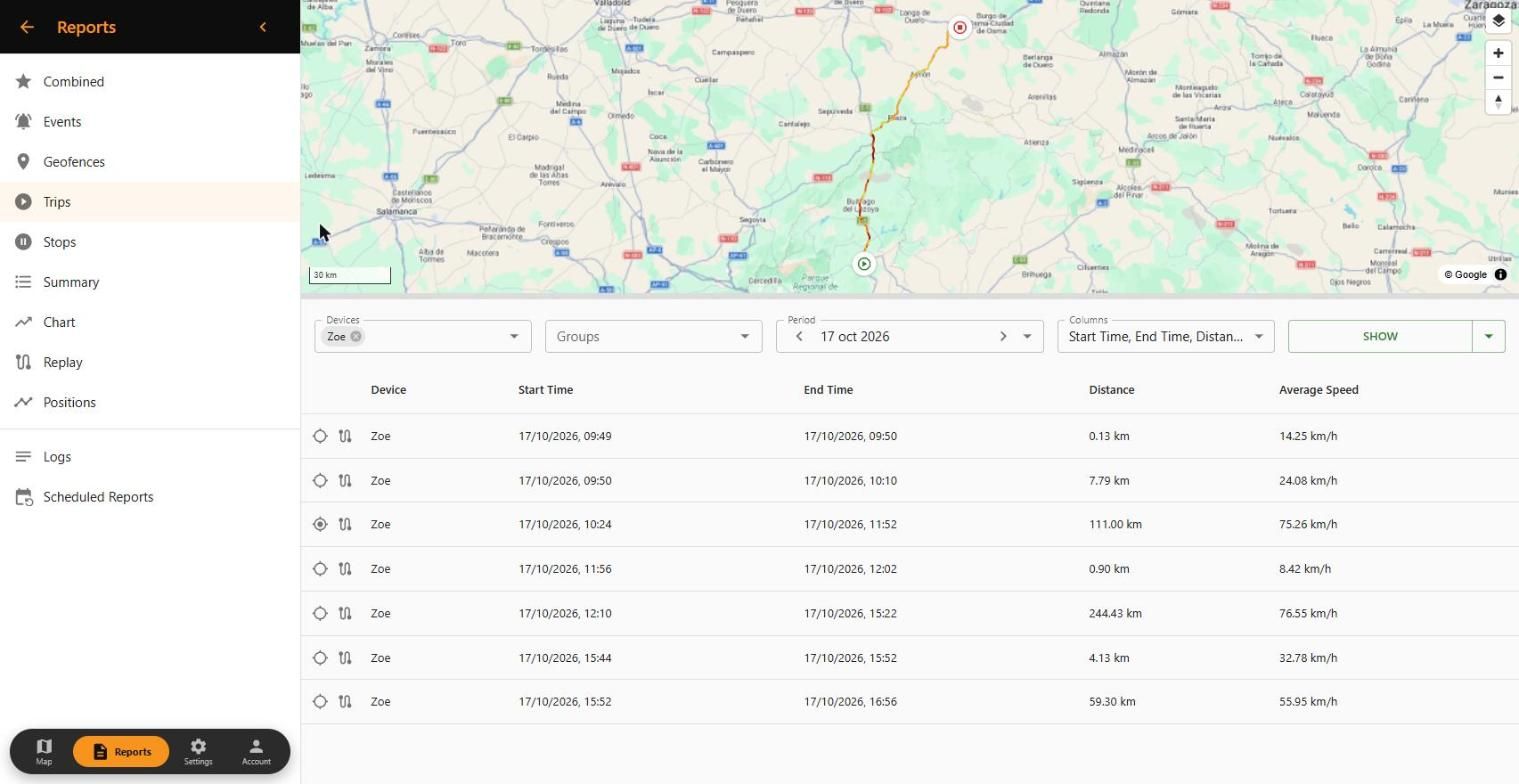
In Reports (bottom bar) you have: Combined, Events, Geofences, Trips, Stops, Summary, Chart, Replay and Positions.
- Choose the vehicle (or a group) and the period.
- Click Show. In Trips, the target icon draws that trip on the map.
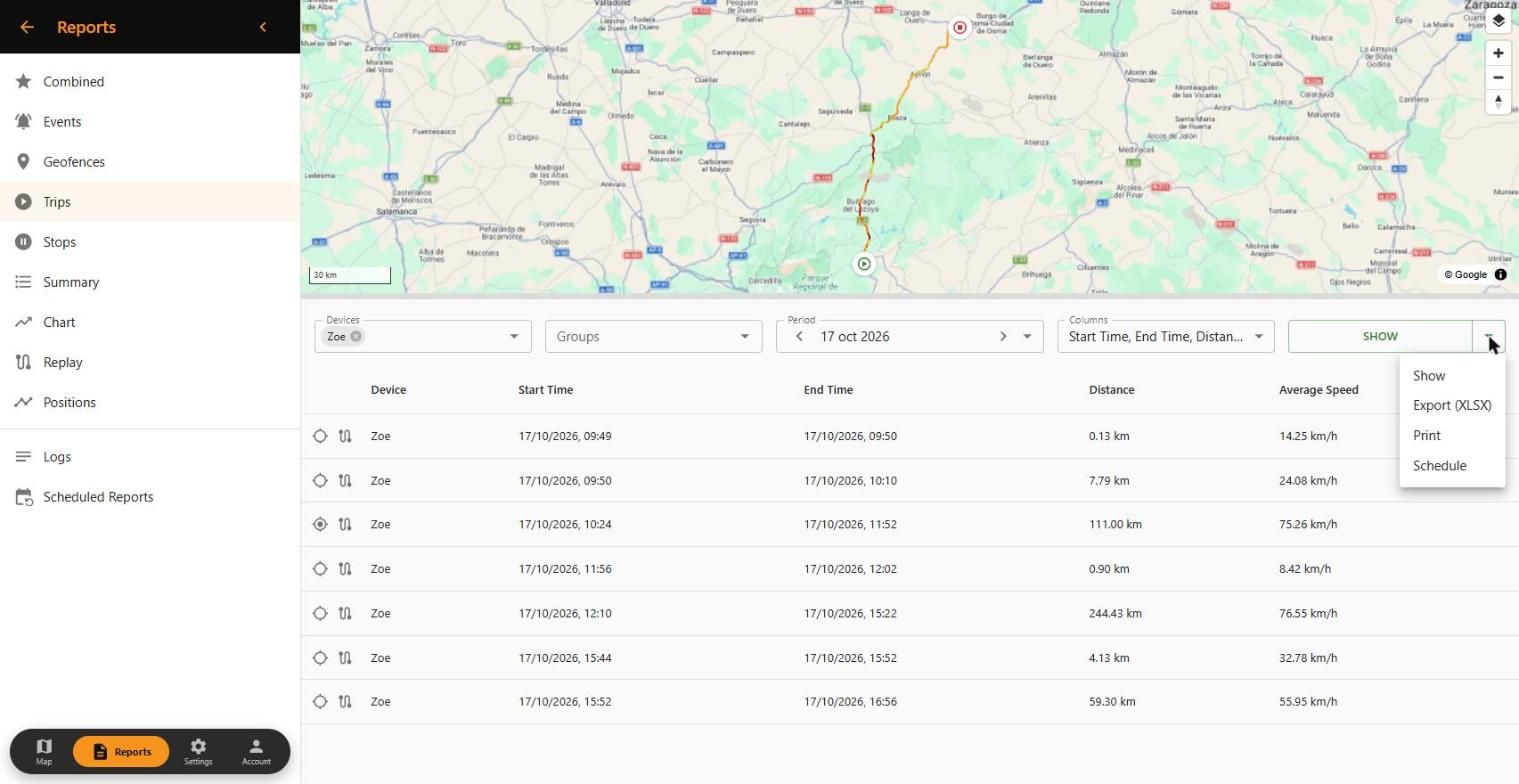
- With the arrow next to Show: Export (XLSX) for Excel, Print or Schedule to receive it automatically.
Automatic sending is managed in Reports › Scheduled Reports. It is only available in the Web App.
3Replay a route
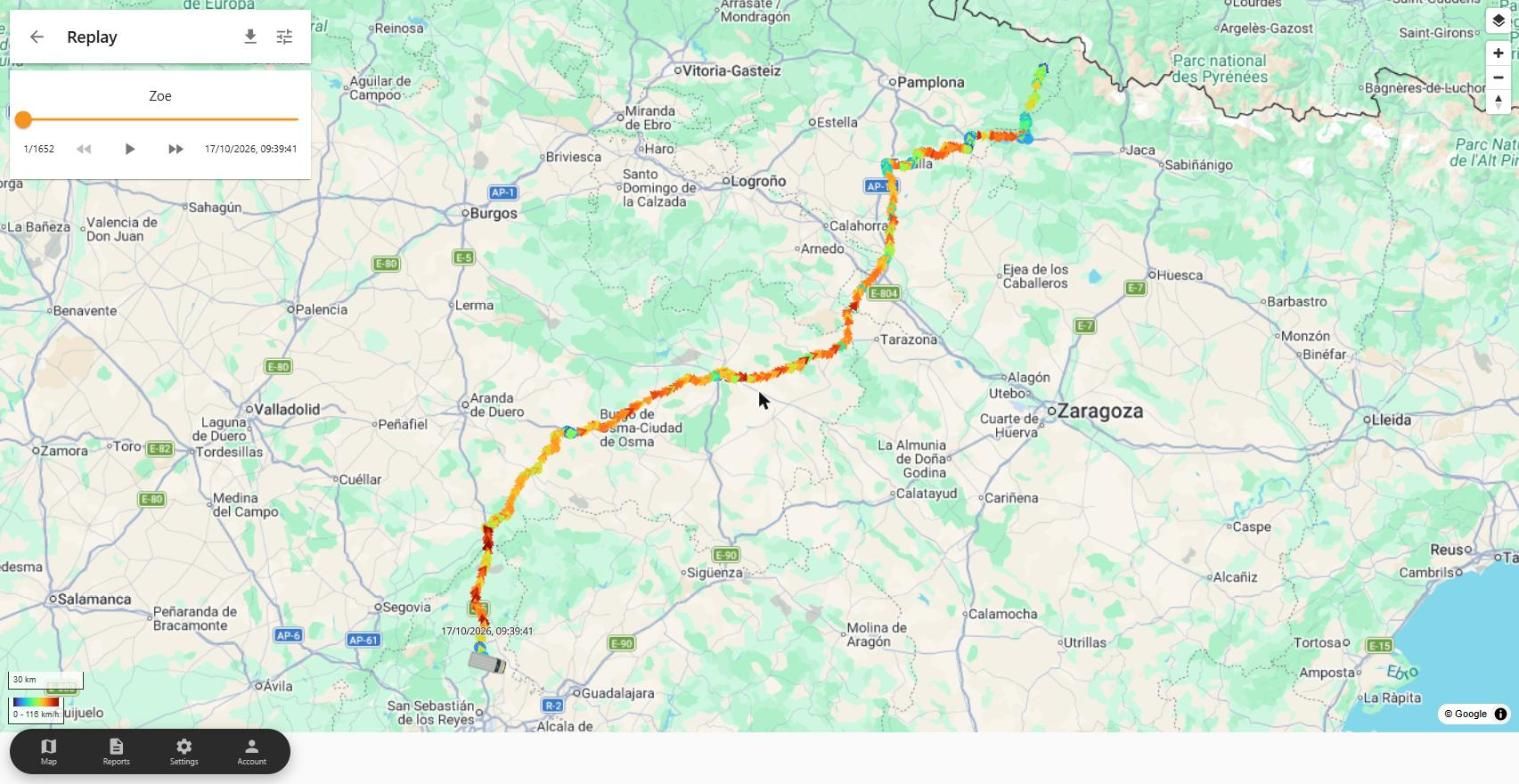
- In Reports › Replay, choose the vehicle and the day and click Show.
- The colour of the line shows the speed. Click ▶ to play the route or drag the bar.
- Use the download button to save the route.
4Alerts
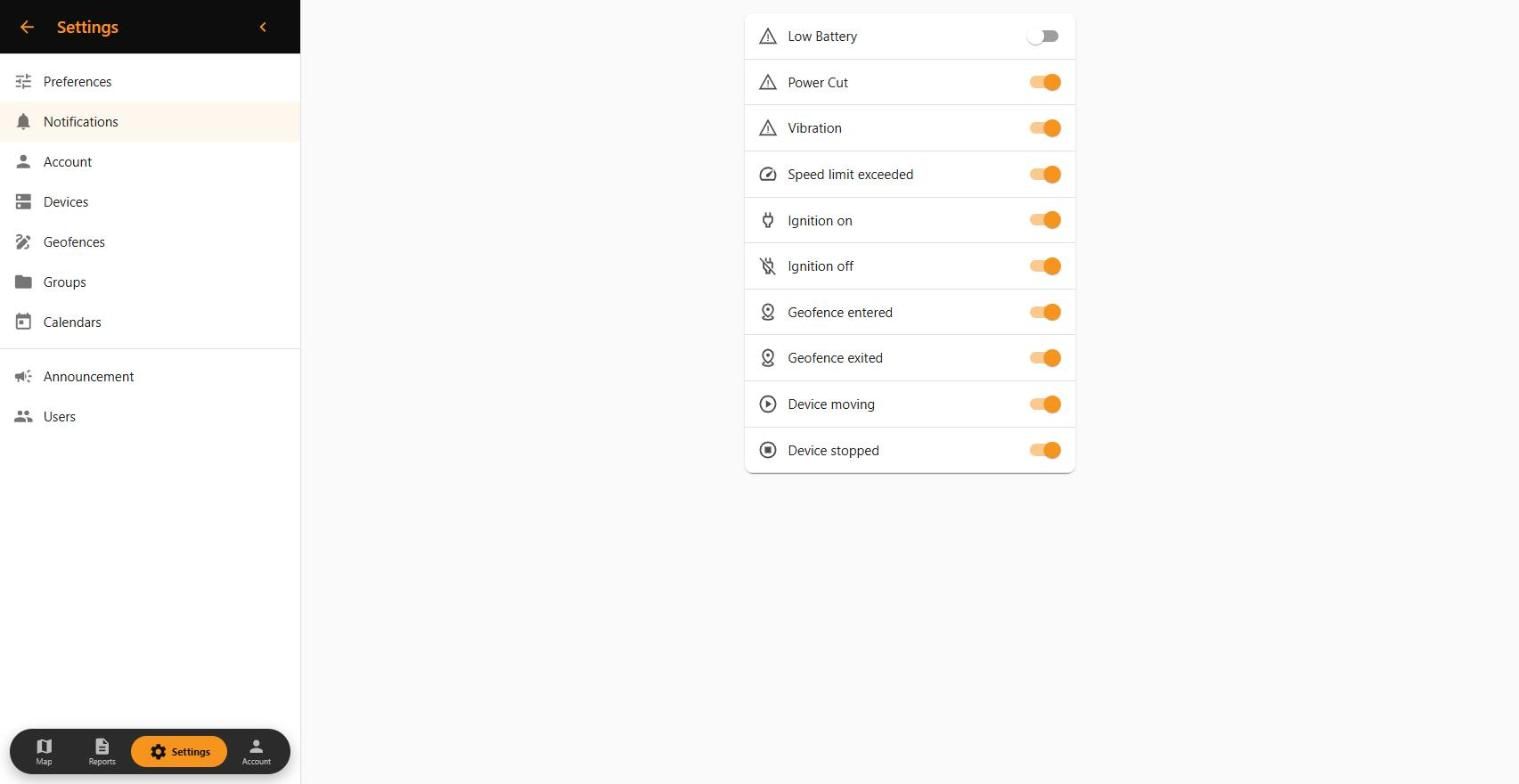
In Settings › Notifications you turn each alert on or off: low battery, power cut, vibration, speed limit exceeded, ignition on and off, geofence entered and exited, device moving and stopped.
Alerts reach your phone through the findCar app.
5Vehicles
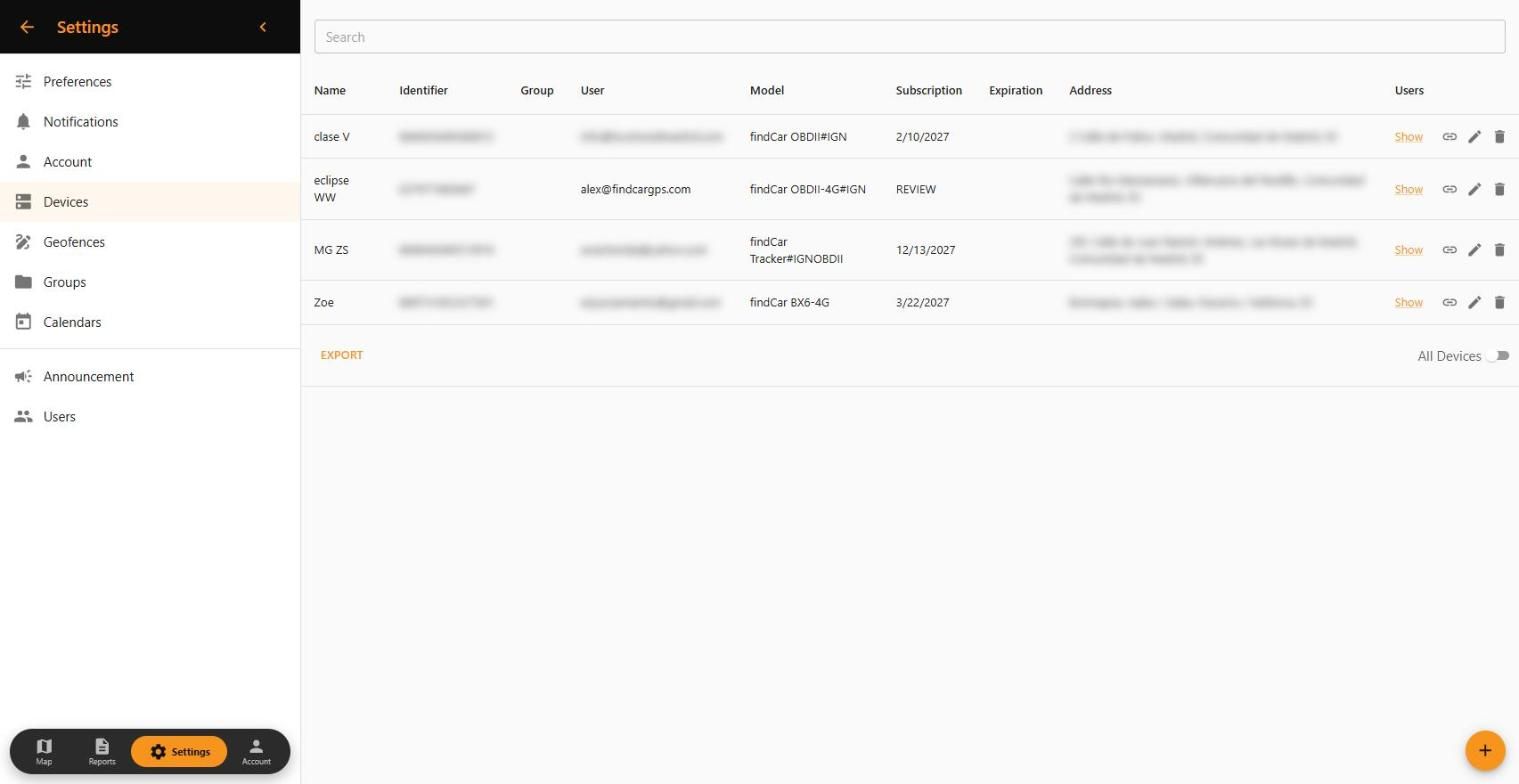
In Settings › Devices you see all your vehicles with their model, subscription expiry and address. Export downloads the list in Excel.
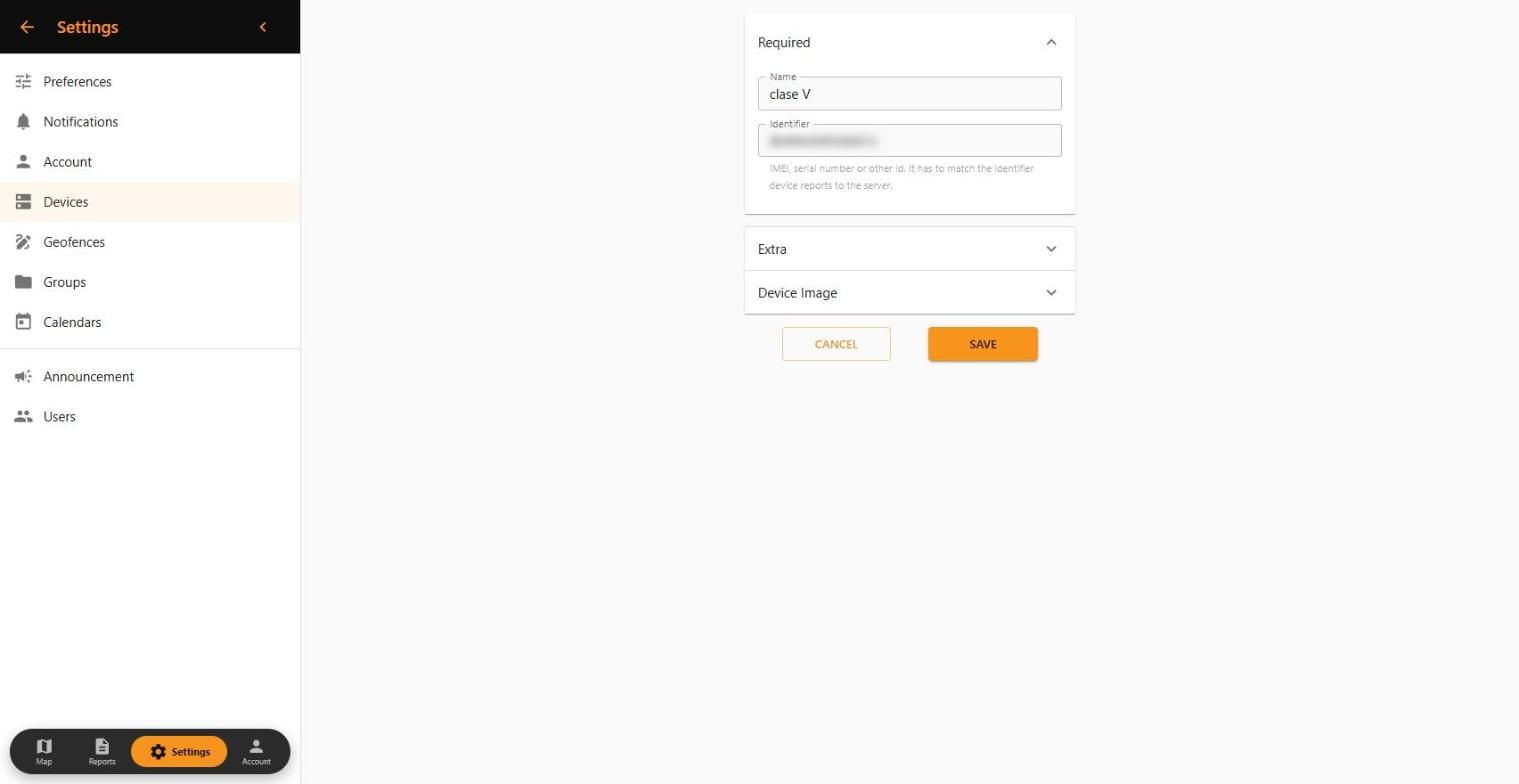
- Edit: name, category, icon, group and image. The identifier (IMEI) cannot be changed.
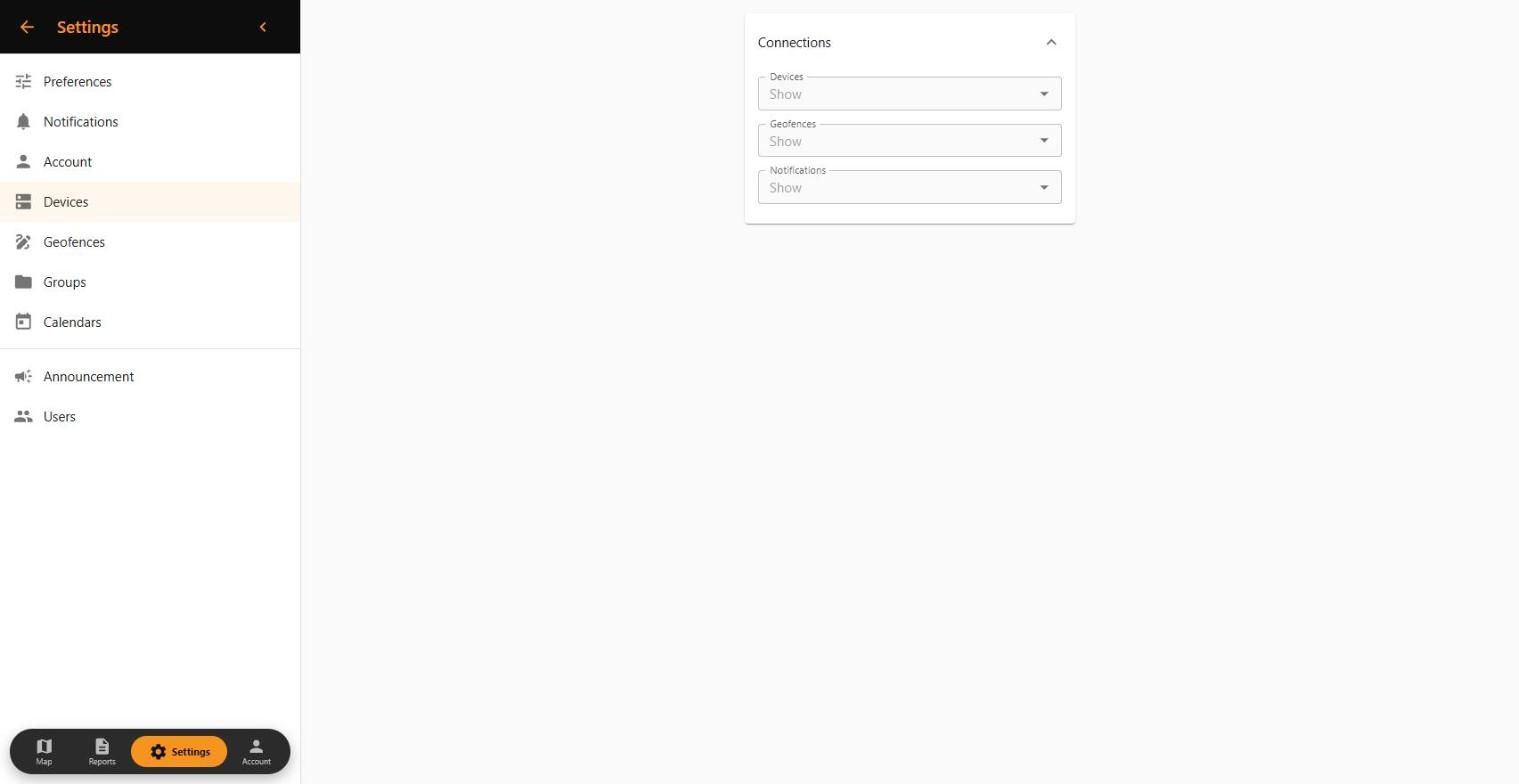
- Connections (link icon): the geofences and alerts for that vehicle.
- Delete: the vehicle disappears from your account and its whole position history is erased and cannot be recovered.
6Fleet users and assigned vehicles
Web App only. Create a user for each driver or manager and choose which vehicles they see. Unlimited users at no extra cost.
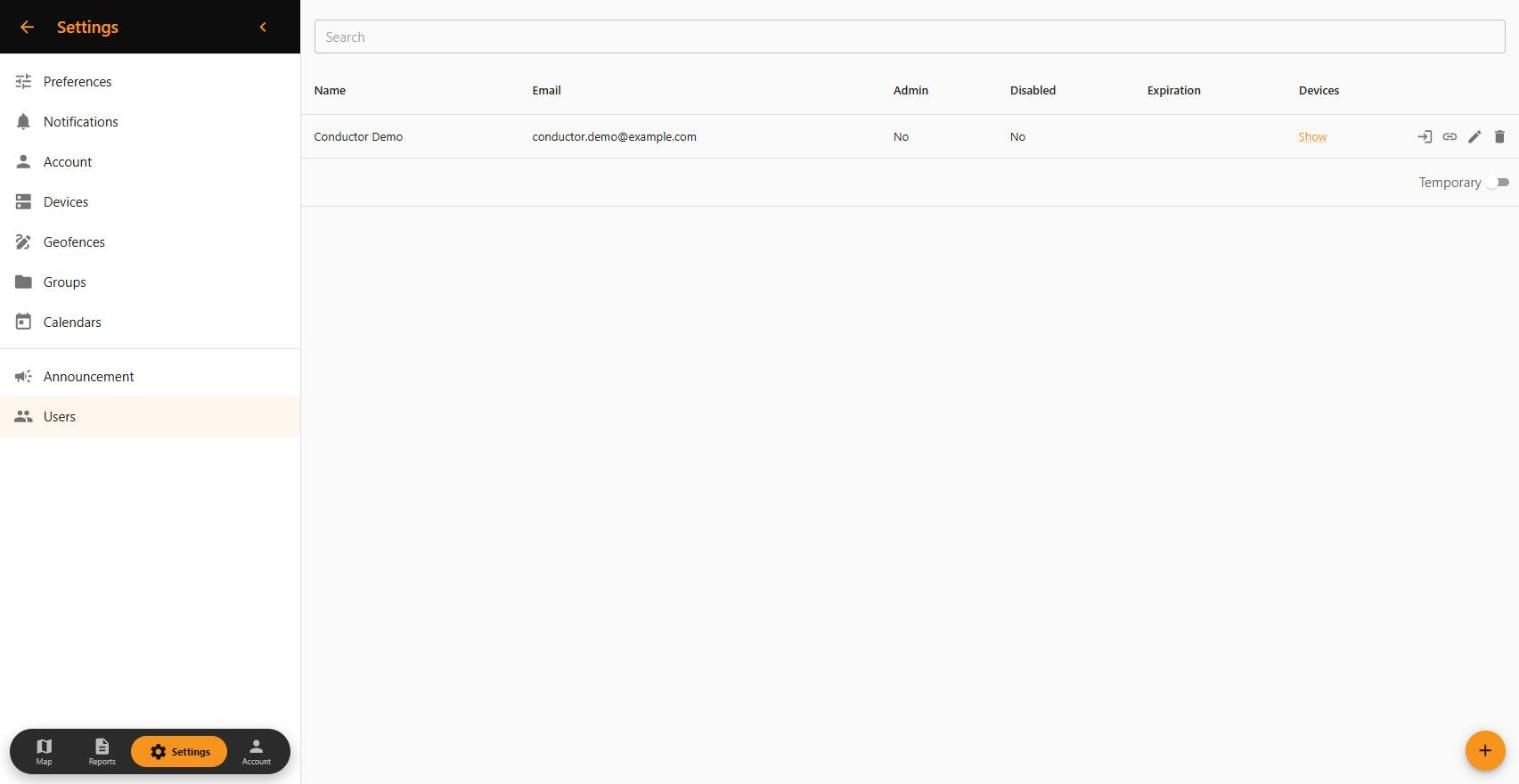
Open Users
In the bottom bar tap Settings and, in the left menu, Users.
Create the user
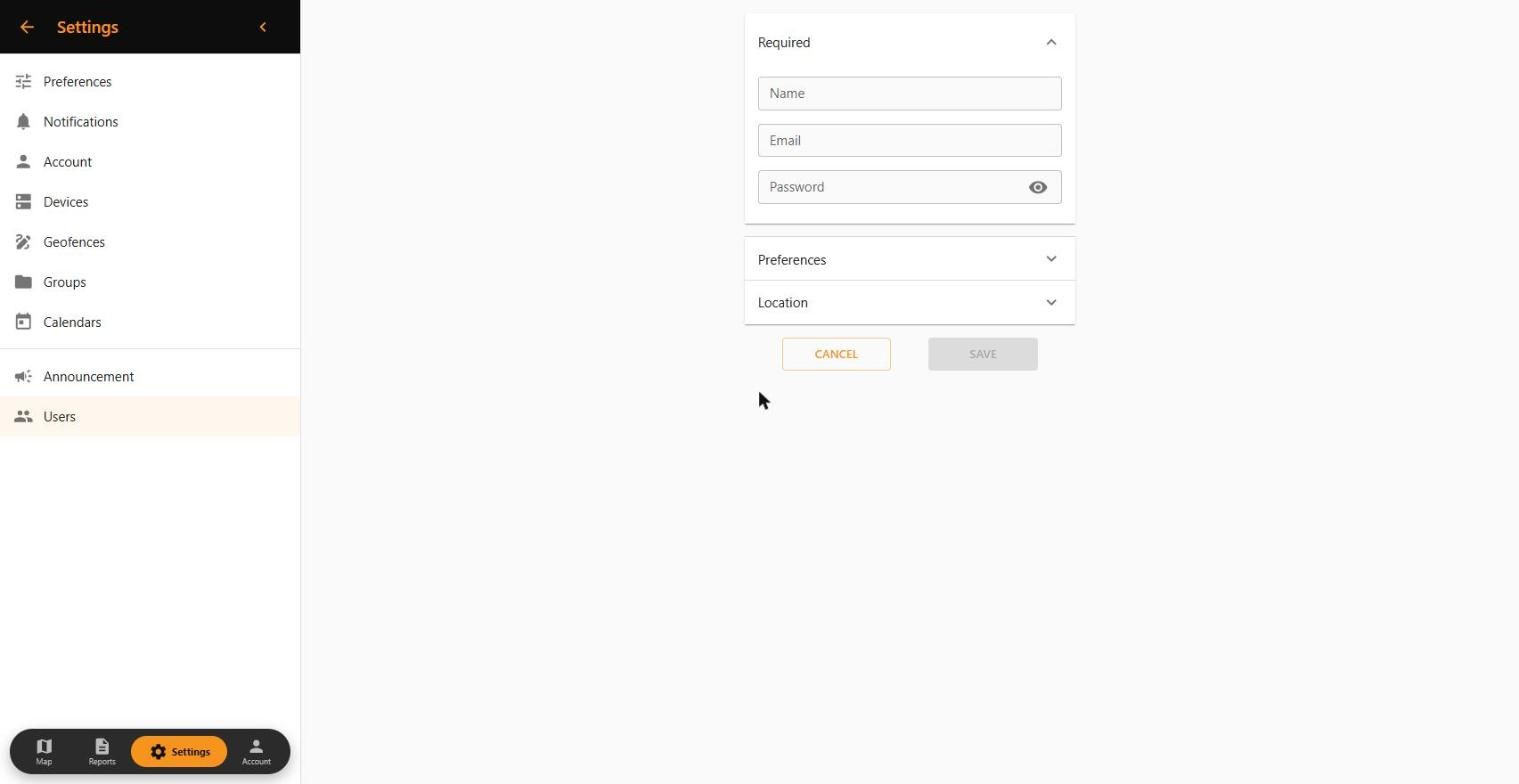
Click the + button (bottom right), enter the driver’s or manager’s name, email and password and click Save. Under Preferences you can choose their language and units.
Open their connections
In the user list, click the link icon on their row.
Assign vehicles
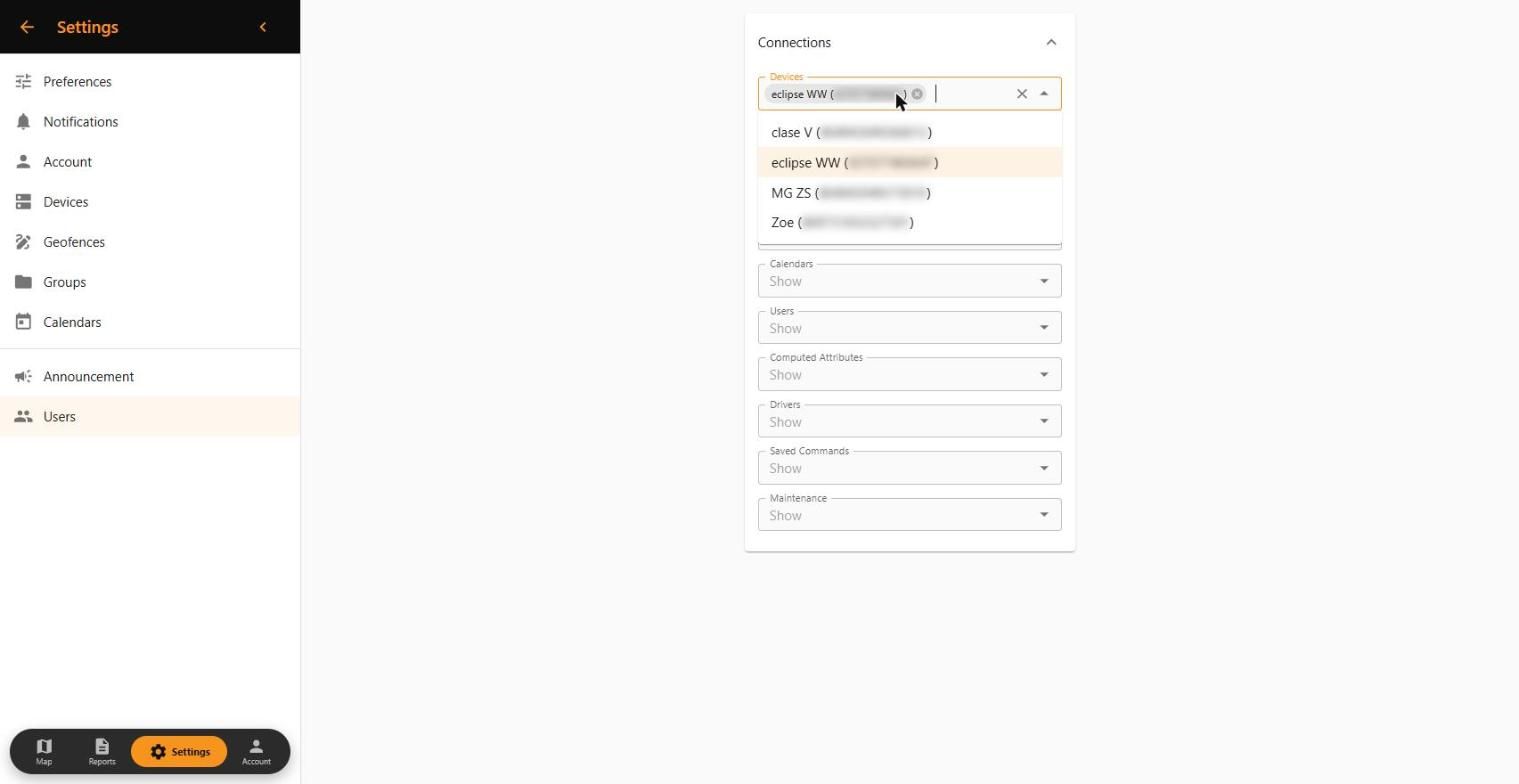
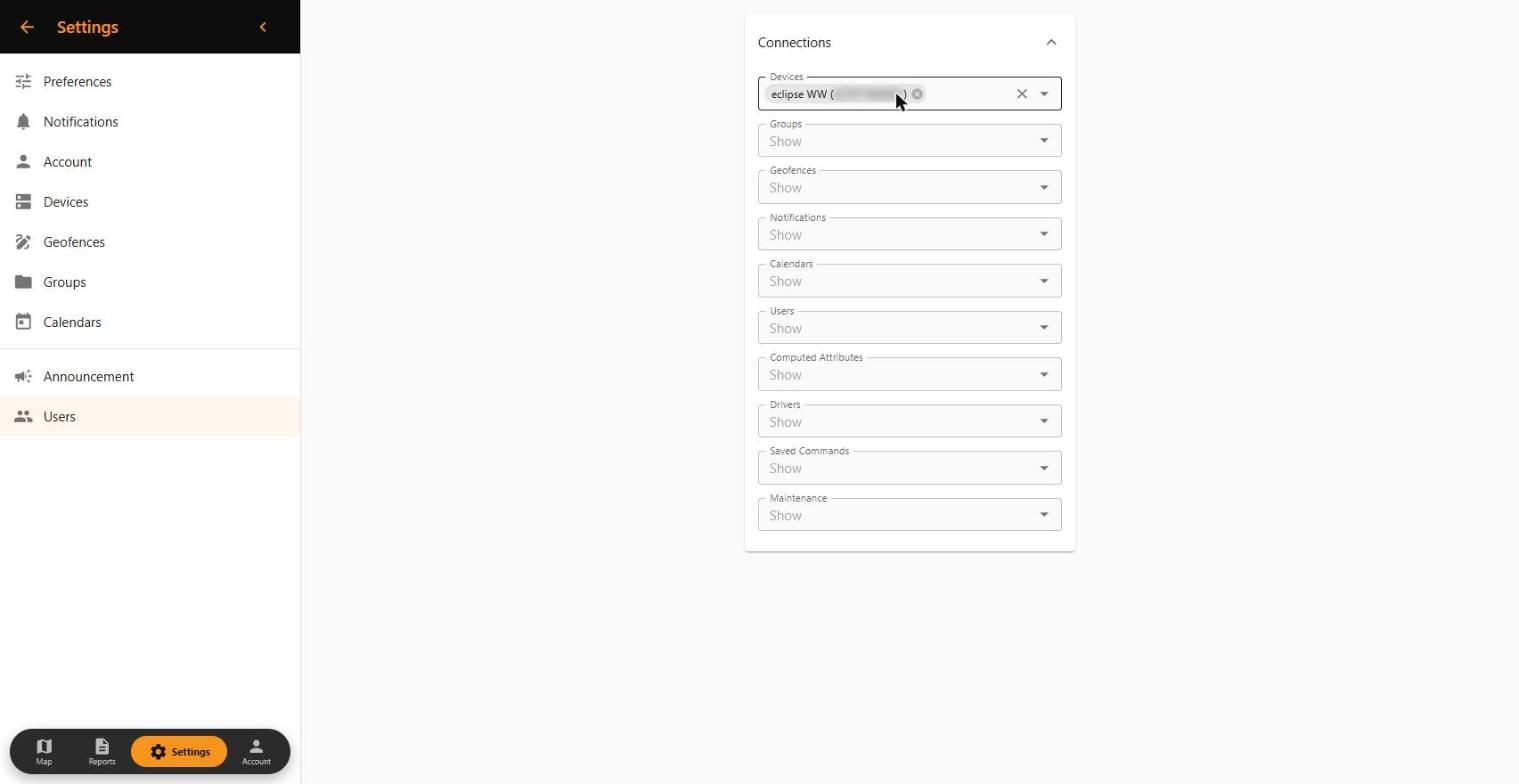
In “Devices”, choose the vehicles they can see. It saves as you select them; to remove one, click the ✕ on its tag.
Give them access
Send them their email and password: they log in to the app or the Web App and only see the vehicles you assigned.
In the user list each row has: log in as that user, connections, edit and delete. From Connections you can also give them groups, geofences, alerts and calendars.
7Geofences
A geofence is an area on the map (home, office, workshop). You get an alert when the vehicle enters or leaves it.
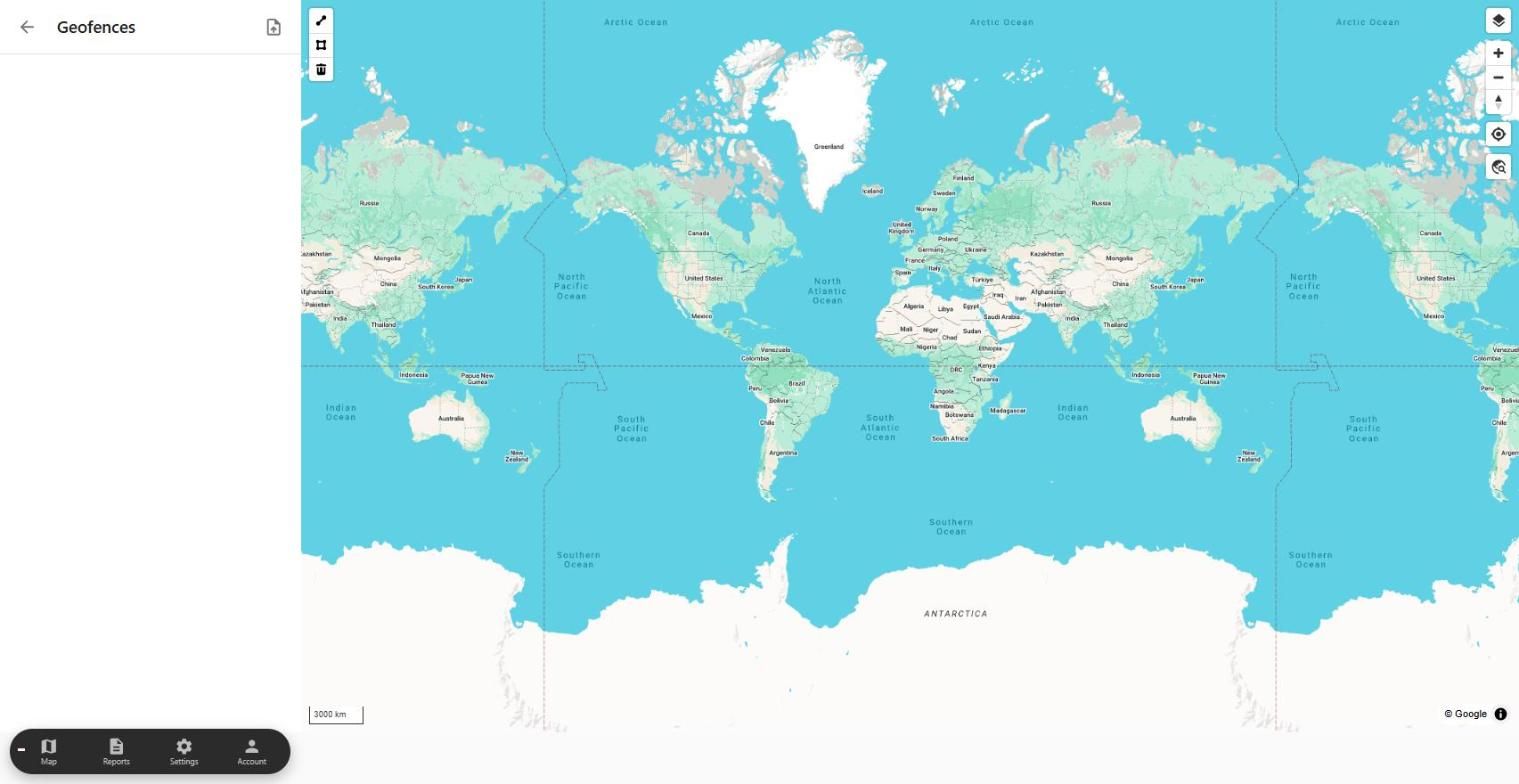
- In Settings › Geofences, choose the drawing tool at the top left of the map: polygon for an area or line for a route.
- Draw the area, name it and save it.
- Turn it on for the vehicle: Settings › Devices › Connections › Geofences.
You can also create it from the vehicle card (⋮ › Create Geofence) or from the app.
8Preferences and account
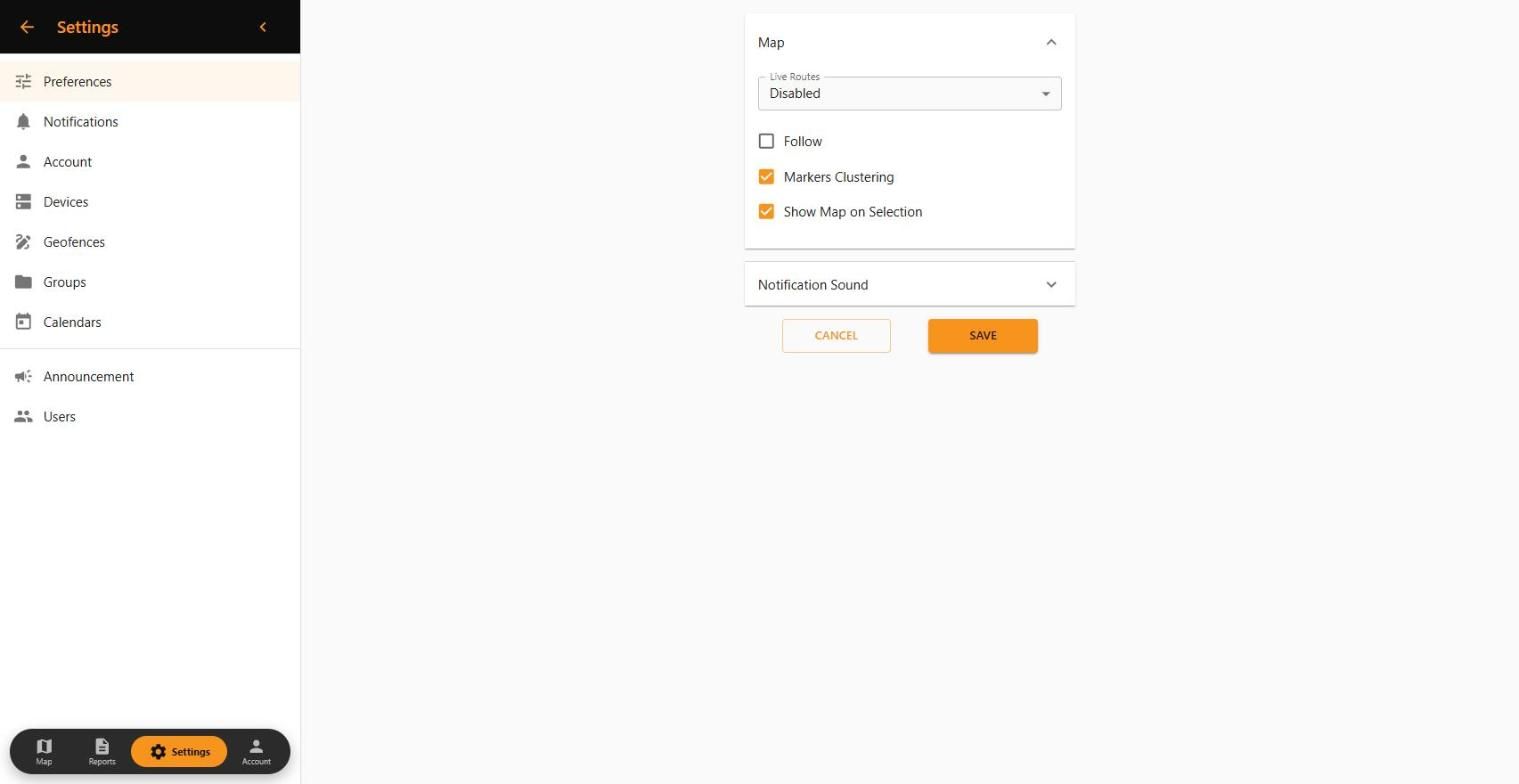
- Settings › Preferences: live routes, follow the vehicle, marker clustering and alert sound.
- Settings › Account: name, email, password, language, units and time zone.
- To log out: Account (bottom bar).