App guide
How to use the findCar app
Log in with your email and password (or with Google or Apple), add your tracker by scanning the IMEI and it activates in 1 to 5 minutes. In the app you see it on the map, get alerts, create geofences and download reports in Excel.
Before you start
- The findCar app installed on Android or iPhone.
- Your findCar email and password: if it’s your first purchase, you got an email to create it after activating your plan.
- The tracker installed: OBD 4G guide or Tracker 4G guide.
- Prefer your computer? The Web App works with the same account.
1Log in to the app
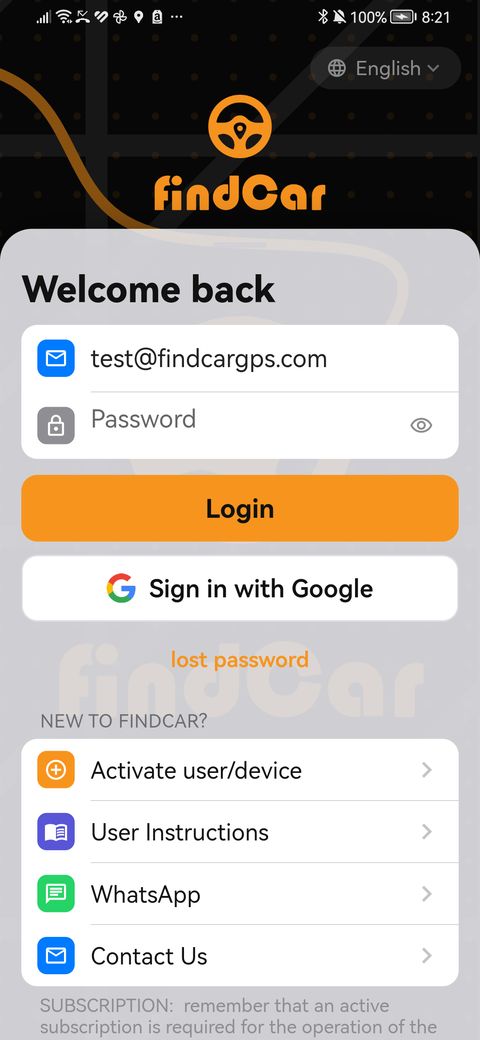
- Open the app and, if you like, change the language at the top right.
- Enter your email and password and tap Login. You can also tap Sign in with Google (on iPhone, Sign in with Apple).
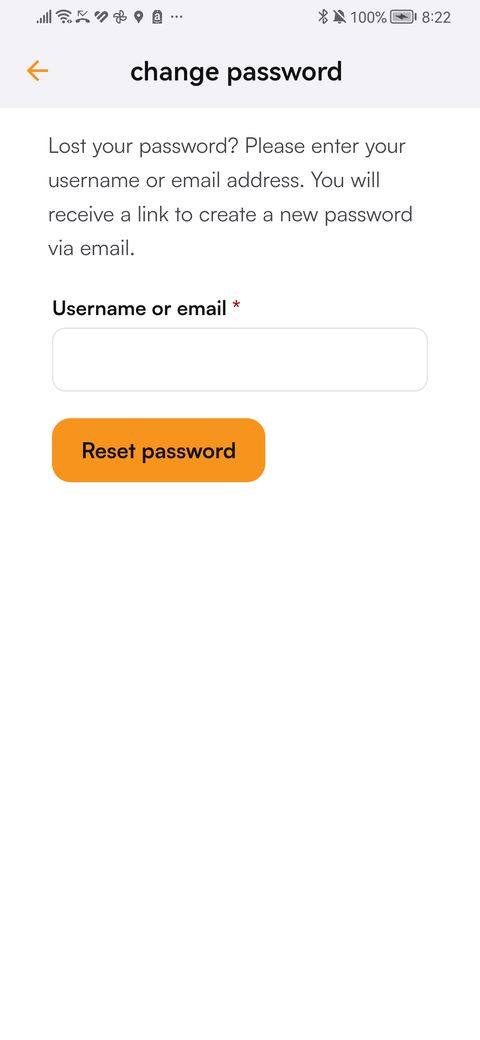
- Forgotten it? Tap lost password, enter your email and confirm: you’ll receive an email to create a new one.
If you see “Incorrect email address or password”, check the email (it’s the one you used to buy) or recover the password. To sign in with Google on Android, the phone needs a screen lock (PIN, pattern or password).
2Add your tracker
Paying for the plan and adding the tracker are two separate steps: after paying, add it in the app.
Open “Add device”
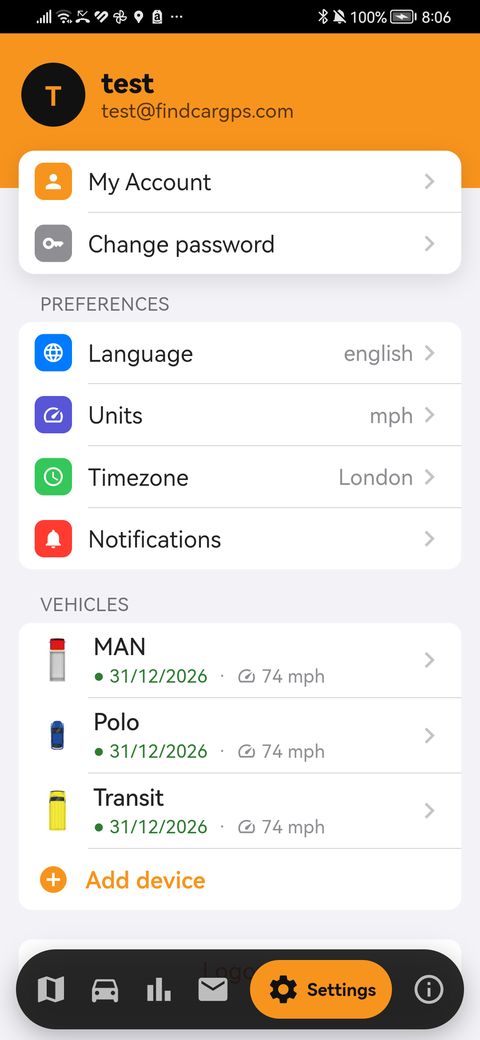
Go to Settings (bottom bar) and, under Vehicles, tap “Add device”. If you don’t have any yet, the map shows it to you directly.
Scan the IMEI
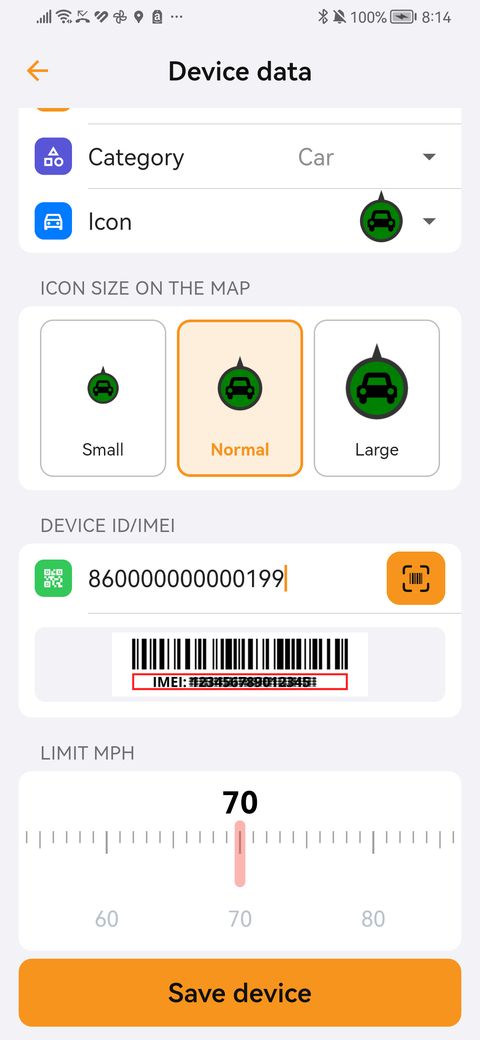
In “device ID”, tap the camera button and scan the IMEI barcode (15 digits, starts with 86; it’s on the tracker and on the box), or type it.
Give it a name
Type the vehicle name (short) and choose the category (car, van, truck, motorbike…) and the icon.
Set the icon and the limit
Choose the icon size on the map and the speed limit for the speed alert (in km/h or mph, depending on your Units setting).
Tap “Save device”
The tracker activates in 1 to 5 minutes.
Wait for the first position
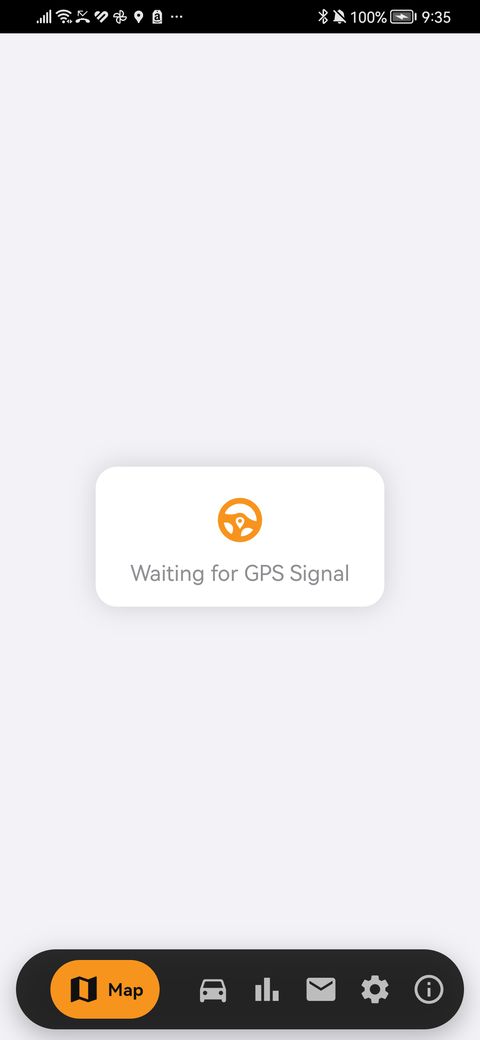
With the vehicle outside, under open sky. It usually arrives in under 5 minutes, although it sometimes takes up to 15–20. Meanwhile the app shows “Waiting for GPS Signal”.
If you see a message
- “This IMEI/ID does not belong to a findCar device”: you’ve entered another number. Don’t use the FKSU code on the label on the back of the box.
- “This device is already registered to another account”: message us on WhatsApp.
- “This device is already in your account”: you already have it; look for it in Vehicles.
3The map
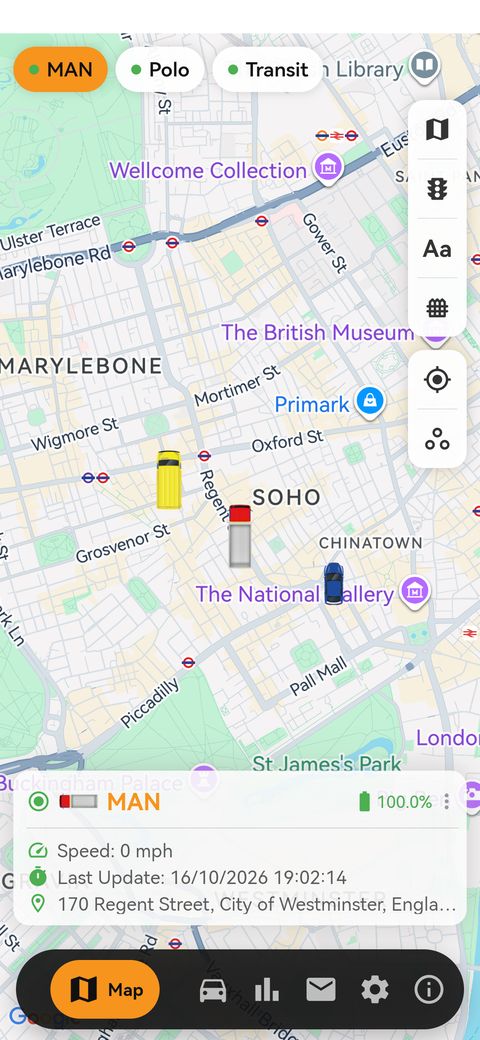
- At the top you choose the vehicle; at the bottom you see its speed, the time of the last update and the address.
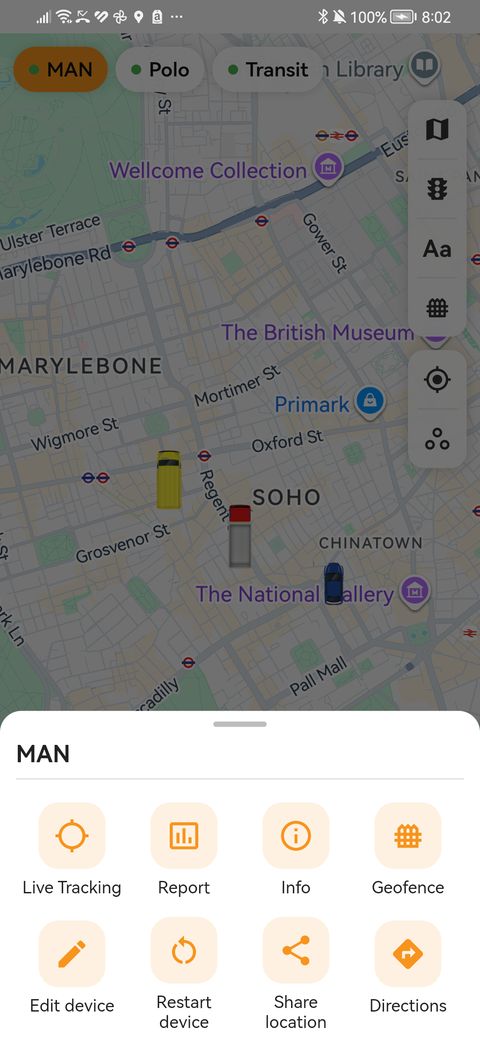
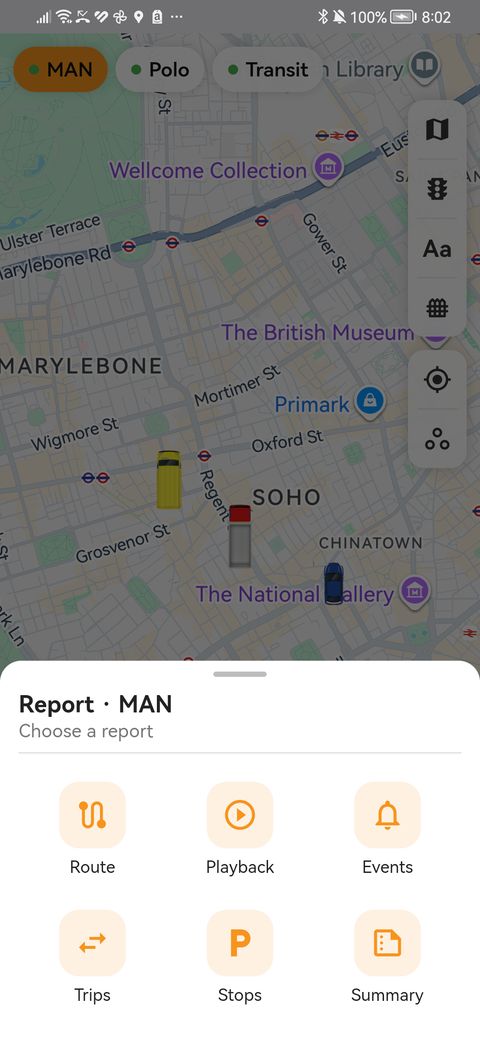
- Tap the vehicle to open its menu: Live Tracking, Report, info, Geofence, Edit device, Restart device, Share location and Directions.
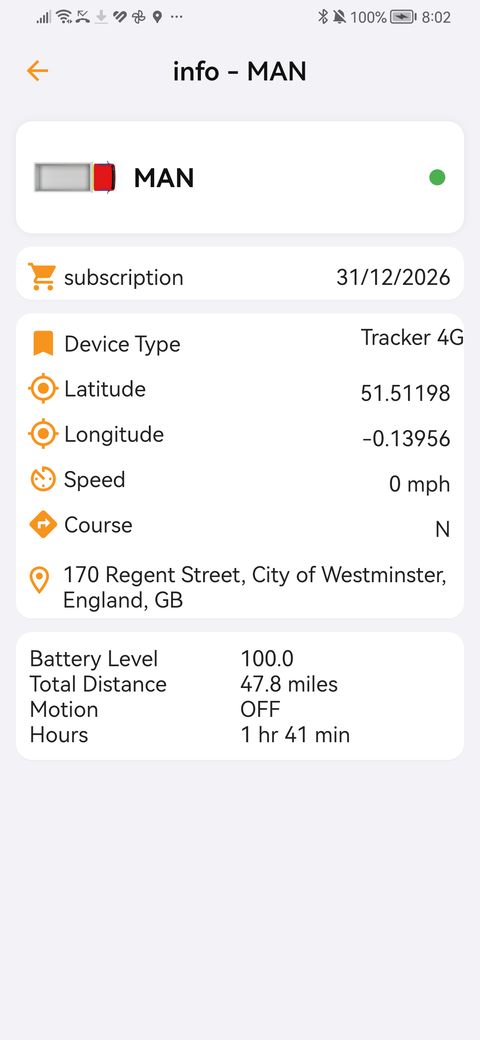
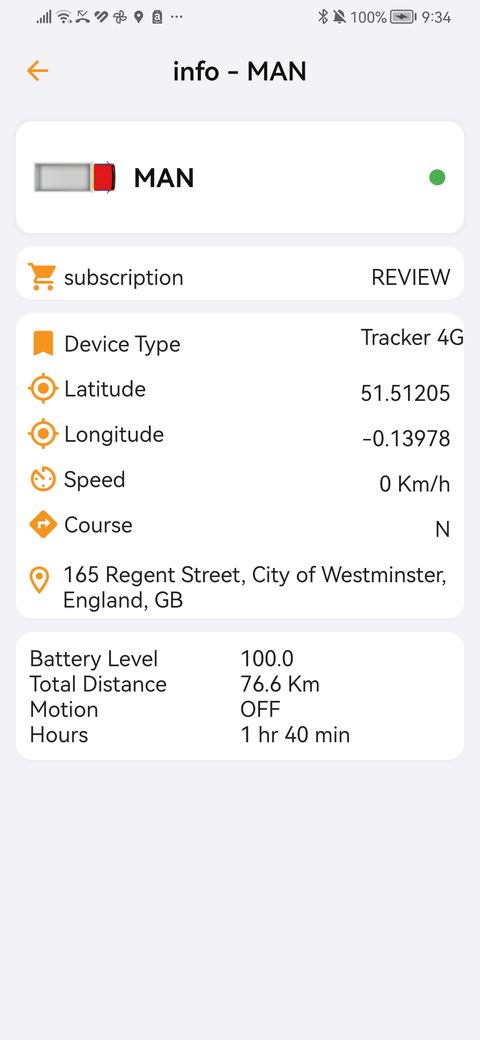
- info shows the subscription (renewal date), the device type, the position, the speed, the battery and the total distance.
- If the subscription shows REVIEW instead of the date, check your plan in My Account: without an active subscription the tracker doesn’t work.
- “Disconnected” while the vehicle is parked is normal: when the vehicle is stopped it stops transmitting to save battery and comes back when it moves.
4Routes and reports
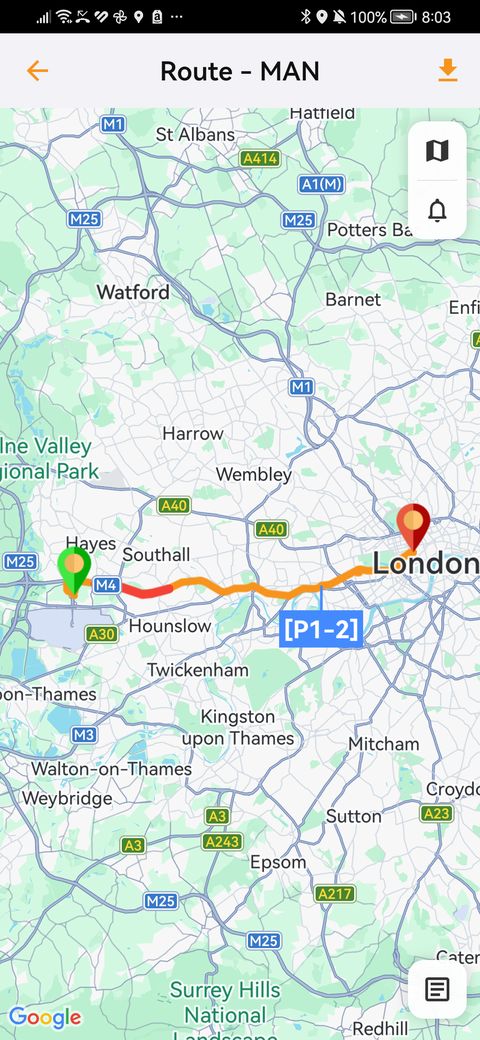
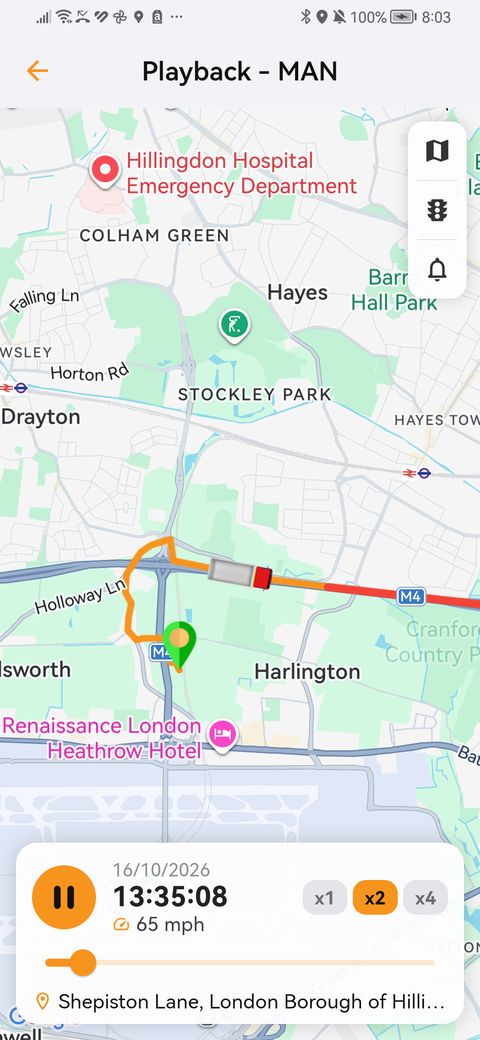
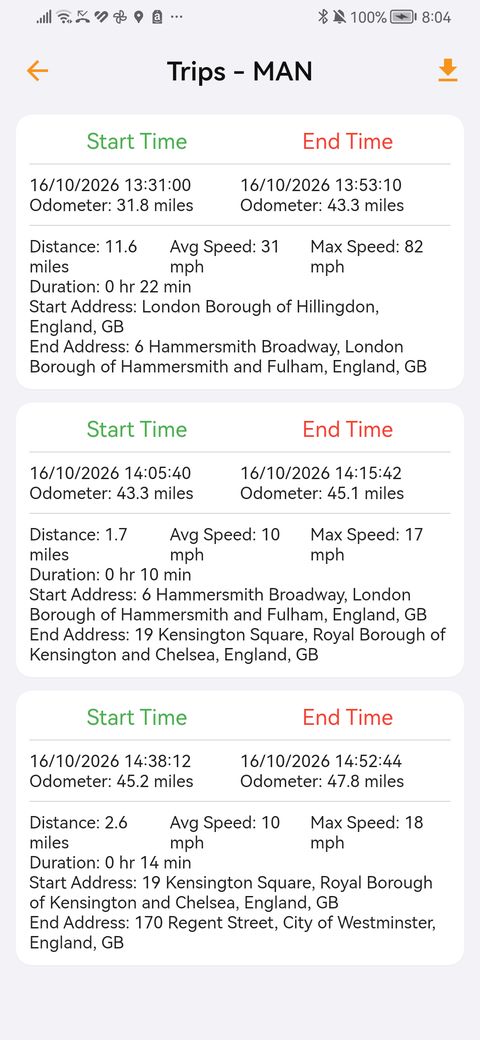
- In the vehicle menu tap Report and choose the report: Route, Playback, Events, Trips, Stops or Summary.
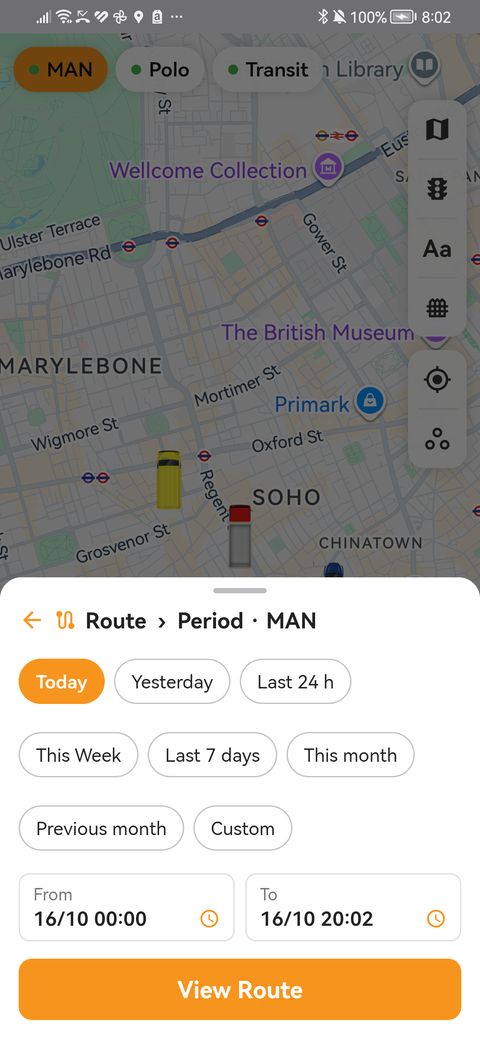
- Choose the period (today, yesterday, last 24 h, this week, last 7 days, this month, last month or custom; maximum 31 days per report) and tap View.
- Route: the journey on the map, with the list of points and the alerts.
- Playback: the animated journey, at x1, x2 or x4 speed.
- Trips, Stops and Summary: times, addresses, distance, average and maximum speed, and engine hours.
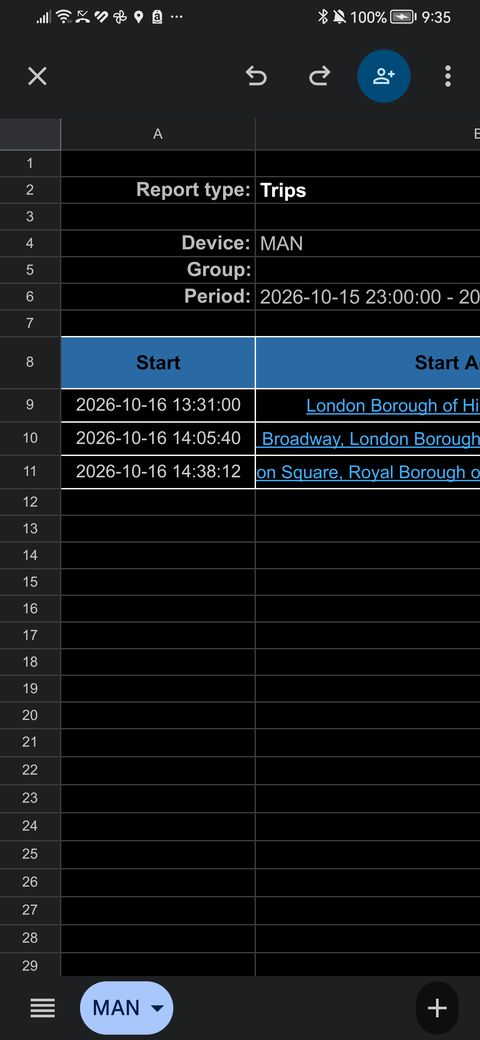
- Download Excel: tap the download icon at the top right of the report.
- The activity tab shows distance and time in motion by day, with the speed chart and your limit.
Scheduling automatic report delivery is only possible in the Web App.
5Geofences
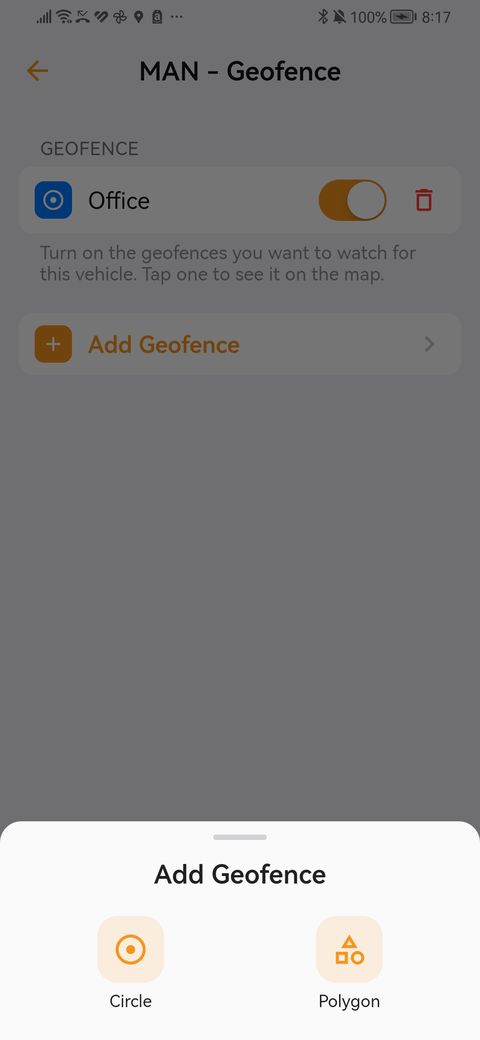
A geofence is an area on the map (home, office, workshop). The app alerts you when the vehicle enters or leaves it.
- In the vehicle menu tap Geofence and then Add Geofence.
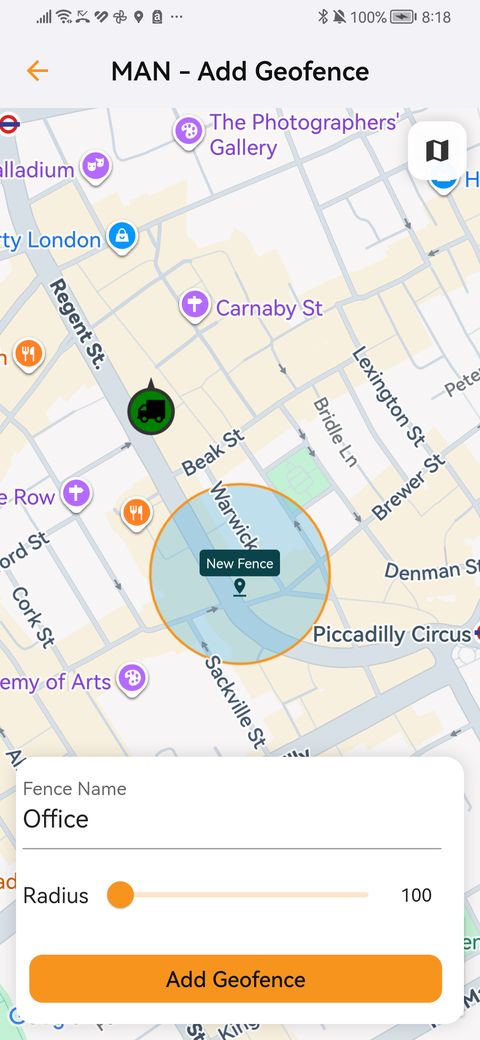
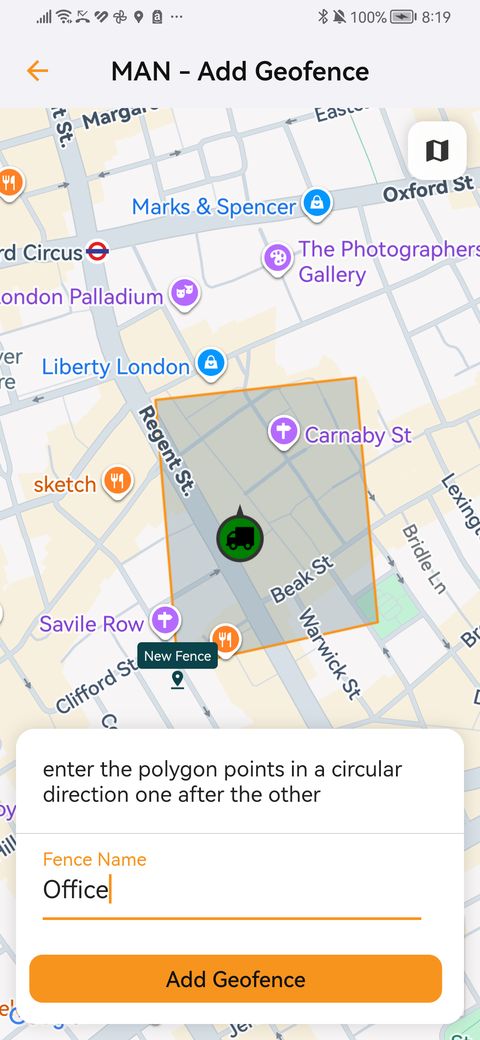
- Choose circle (tap the map at the centre and adjust the radius) or polygon (tap the map point by point, in order around the area; at least 3 points).
- Enter the geofence name and tap Add Geofence.
- In the list, turn on the geofences you want to monitor for that vehicle. Deleting one deletes it for every vehicle that uses it.
6Alerts
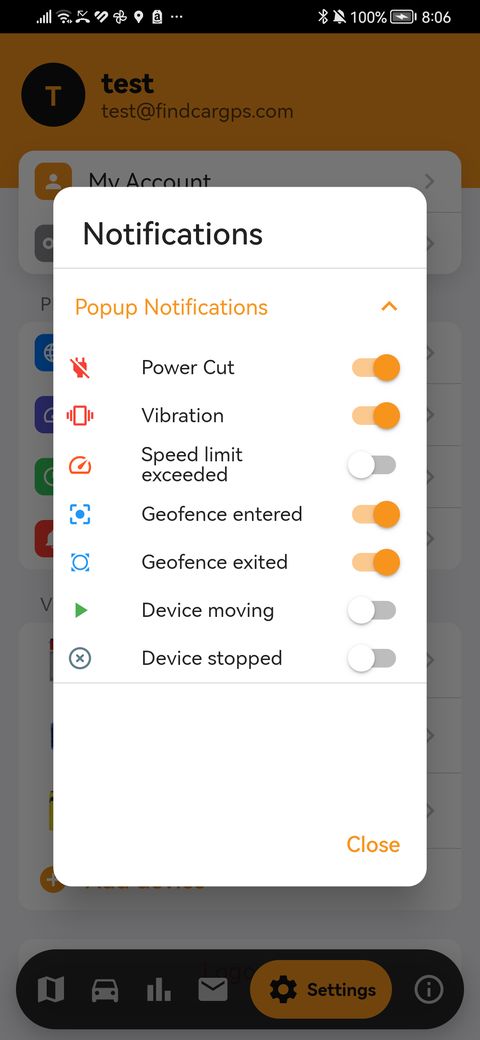
- Settings › Notifications › Select: turn on the alerts you want: power cut, vibration, speed limit exceeded, geofence entry and exit, moving and stopped.
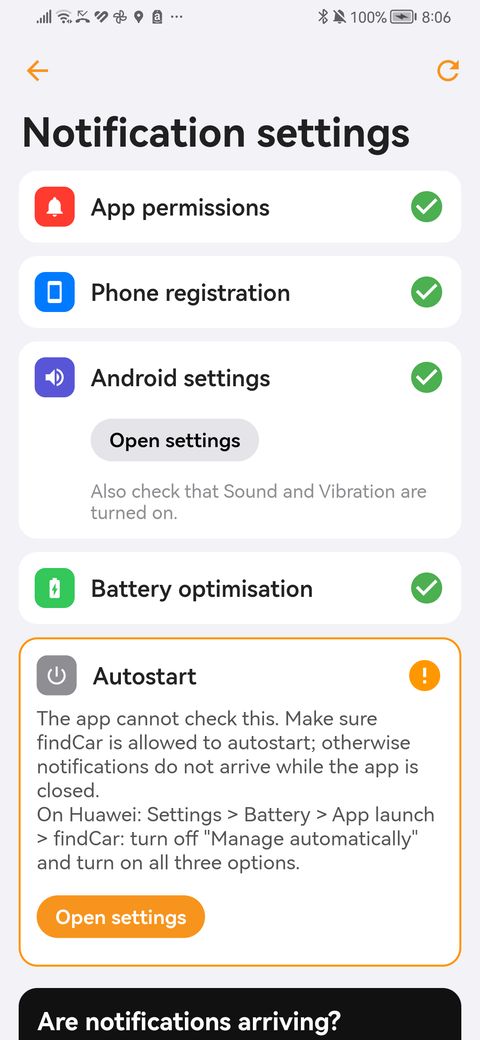
- Settings › Notifications › Configure: the app checks that your phone lets alerts through (permissions, phone registration, Android or iOS settings, battery optimisation and autostart). Tap Fix or Open settings wherever there’s a warning and then Send test notification.
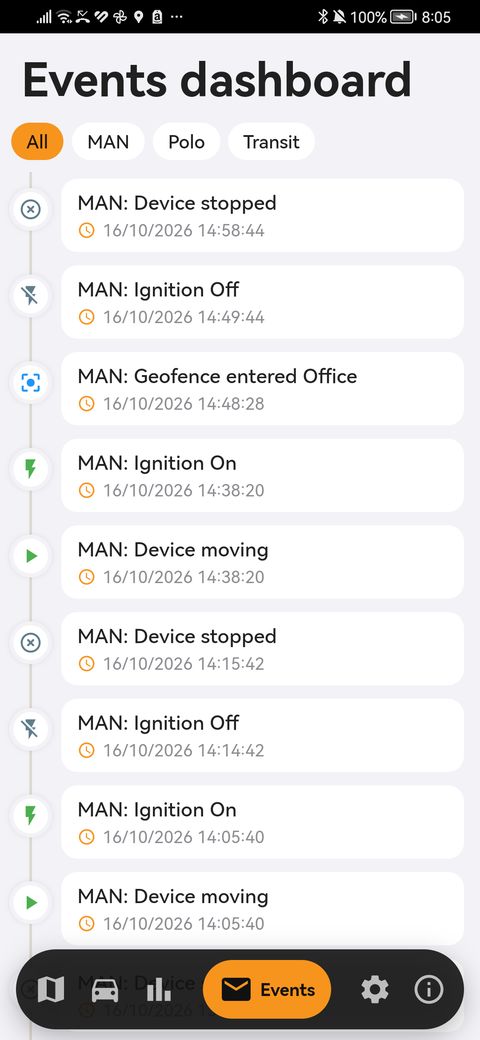
- The events tab (events dashboard) keeps all the alerts; tap one to see it on the map.
On Huawei: Settings > Battery > App launch > findCar: turn off “Manage automatically” and turn on the three options.
7Vehicle settings
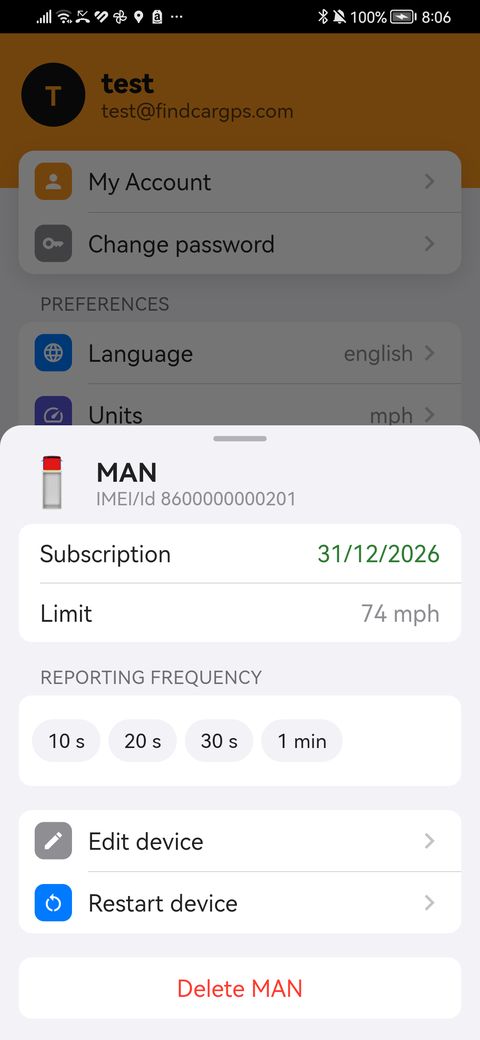
In Settings › Vehicles, tap a vehicle:
- Speed limit: if the vehicle goes over it, you get the speeding alert (if it’s turned on in Alerts).
- Reporting frequency (10 s, 20 s, 30 s or 1 min): the fewer seconds, the more precise the route. We recommend 10 s for the OBD and the Tracker. The change applies at the next connection.
- Edit device (name, category, icon), Restart device and delete: it stops appearing in your account and its whole position history is deleted and cannot be recovered. To see it again you’ll have to add it again.
- In Preferences: language, units and timezone.
8Several vehicles
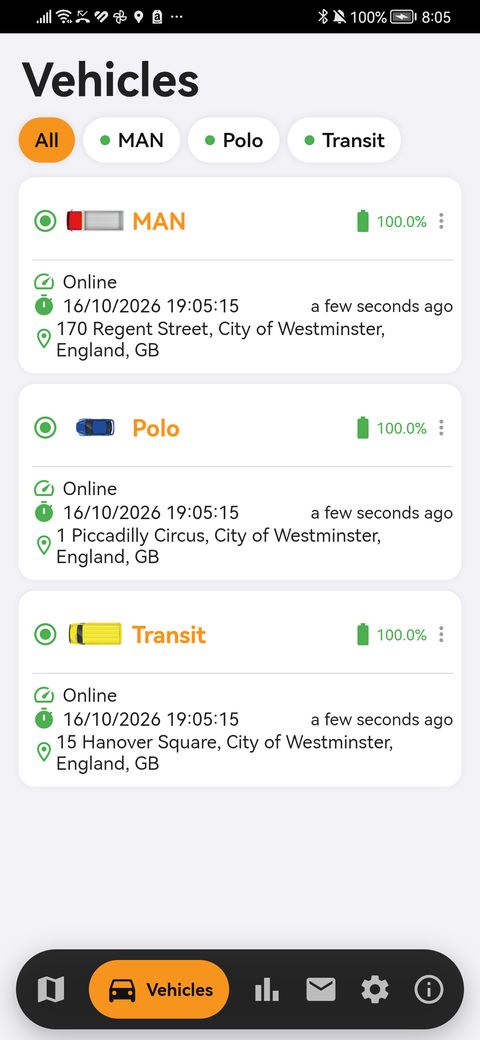
- The Vehicles tab shows them all with their status, battery and last position; filter with “all” or by vehicle.
- The events dashboard and the activity tab can also be filtered by vehicle.
- Company users and the vehicles assigned to each one are managed in the Web App from your computer.
9Help inside the app
In the Info tab: Open chat (we usually reply within a few minutes), WhatsApp or Email, and these User Instructions.